
How To Post a Therapy Shift
This guide shows how to post a therapy shift on KARE so you can quickly get the right coverage in place. Enter the number and length of each patient session, select the appropriate discipline, and get your shift in front of qualified therapists—fast.
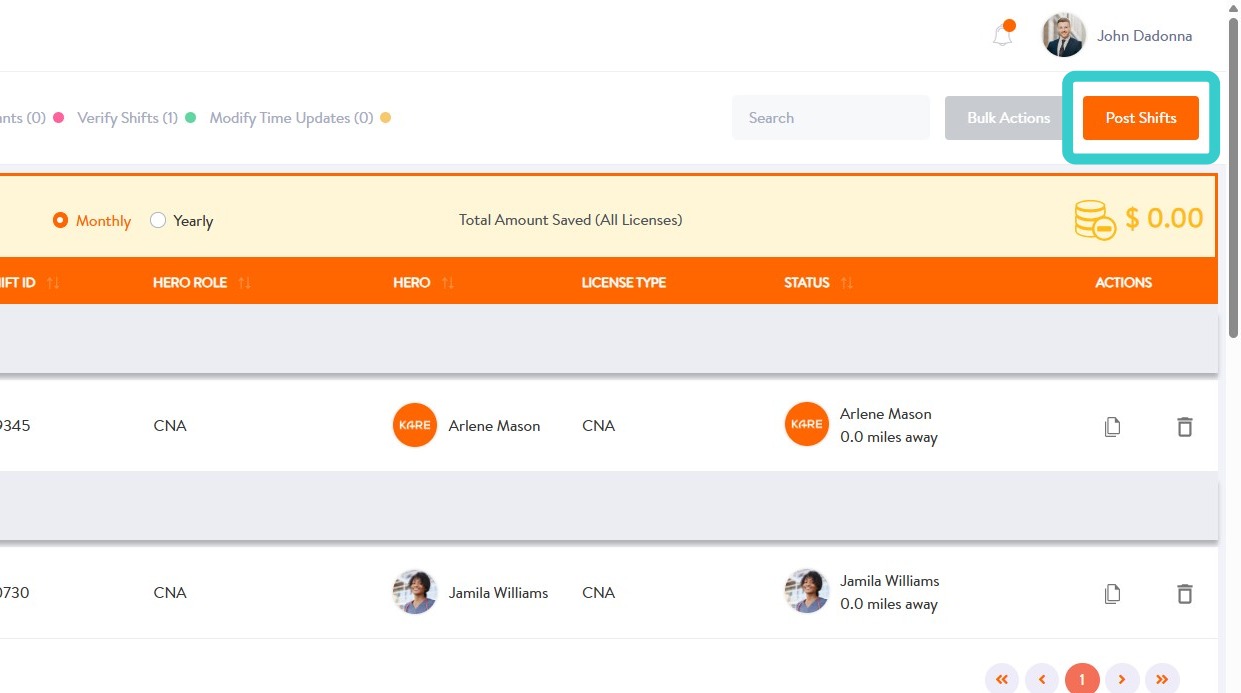
1. Upon login, select Post Shifts
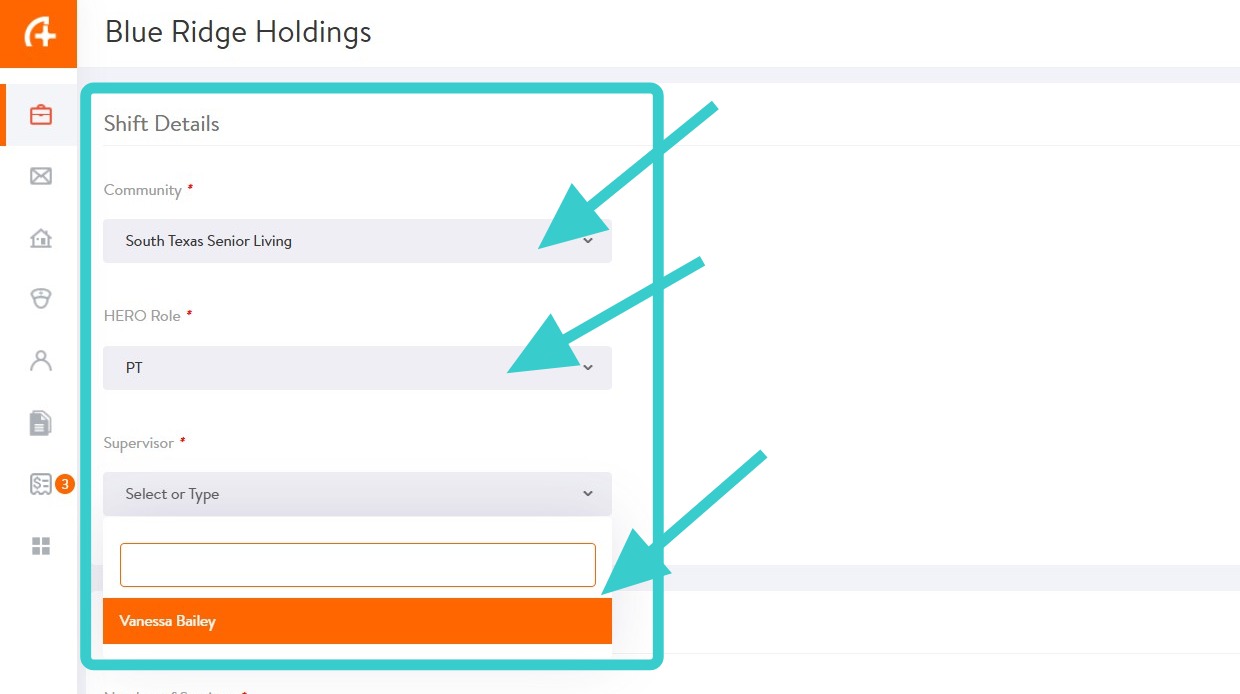
2. Create a shift by entering the required information.
Select from the dropdown lists:
- Community – Where the shift will take place
- HERO Role – The appropriate discipline for the shift
- Supervisor – The person responsible for managing and verifying the shift (e.g., DOR, RD, or Area/Regional Manager, depending on your organizational structure)
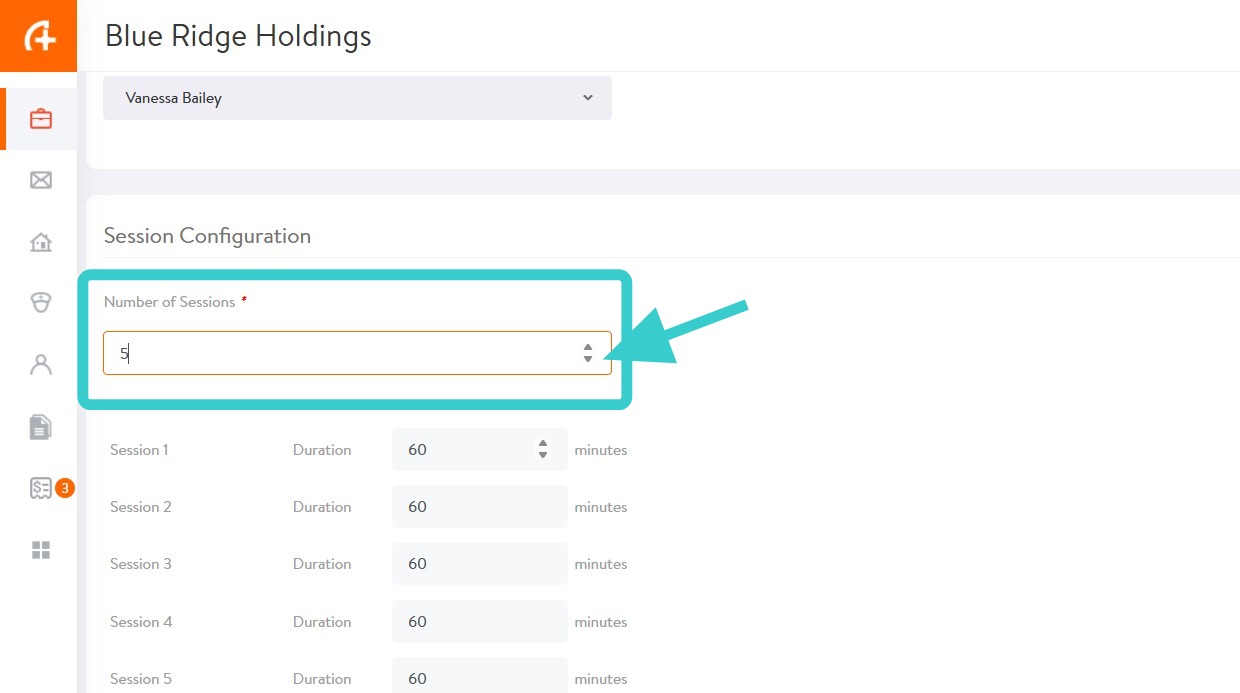
3. Set the number of patient sessions included in the shift using the arrows or by typing the number.
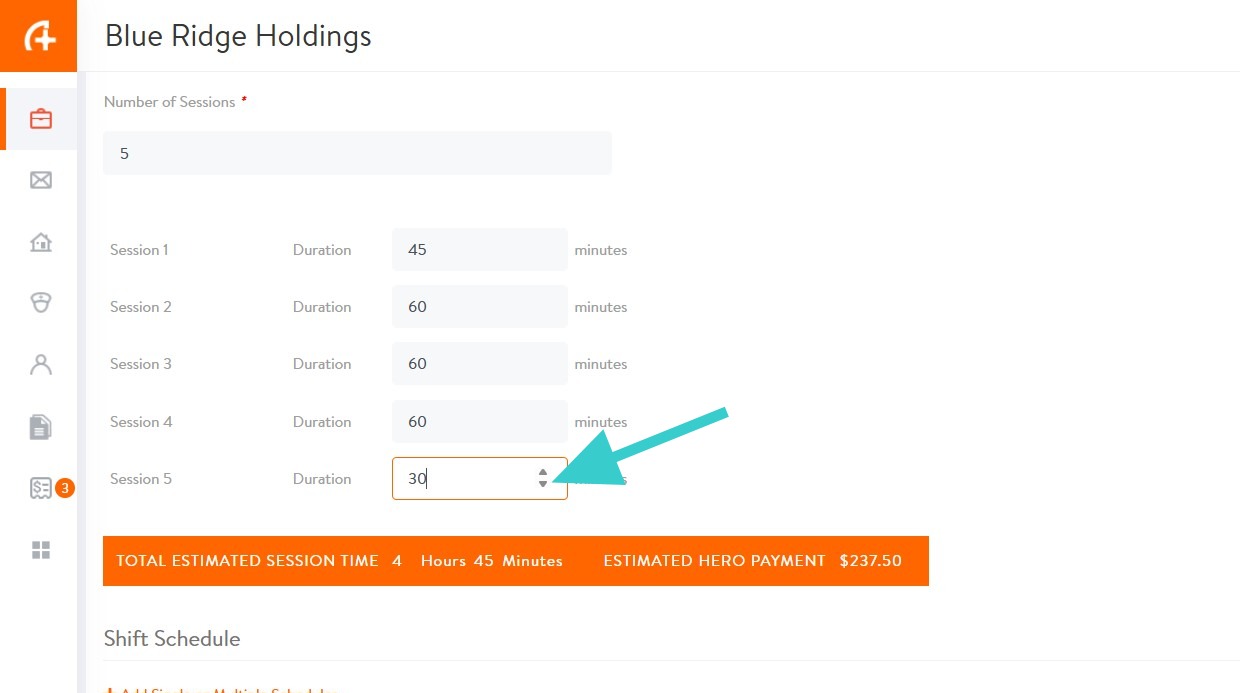
4. Adjust session times to reflect expected billable time using the arrows or by typing the times.
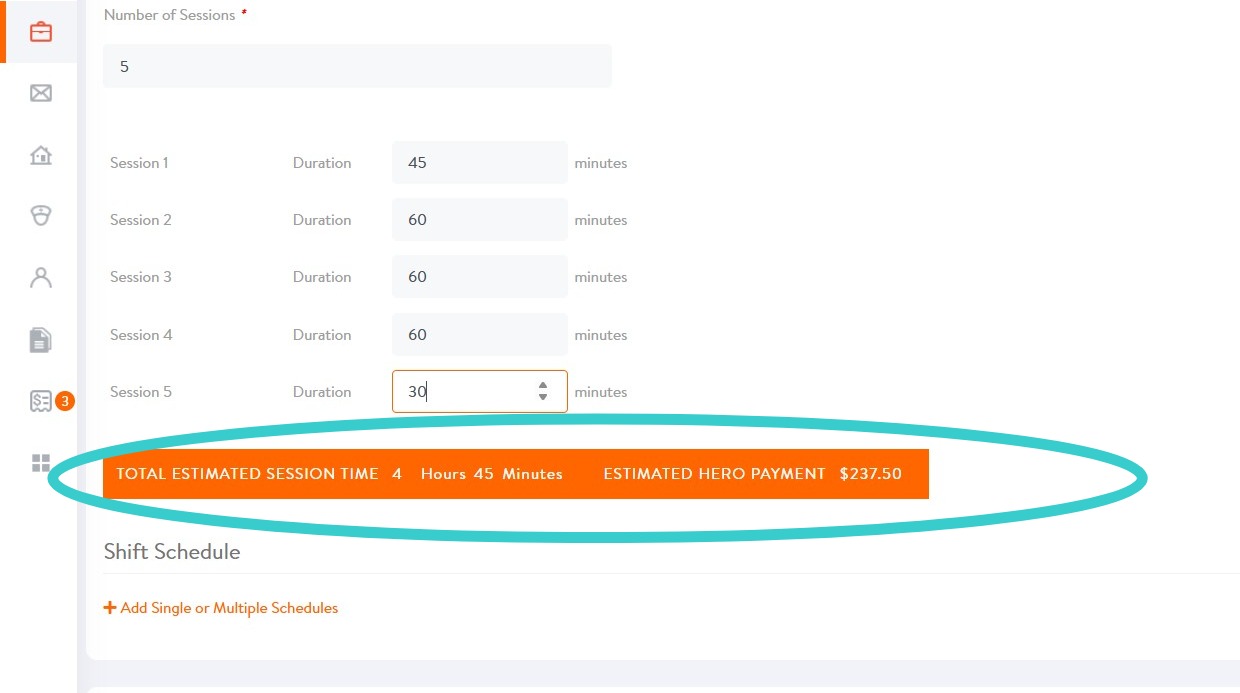
5. Based on the sessions entered and the hourly pay rate set for the discipline, the TOTAL ESTIMATED SESSION TIME and ESTIMATED HERO PAYMENT will populate. Review for accuracy.
Note: Therapy HEROs are expected to be 100% productive, meaning total billable patient time should match the time the HERO is paid for.
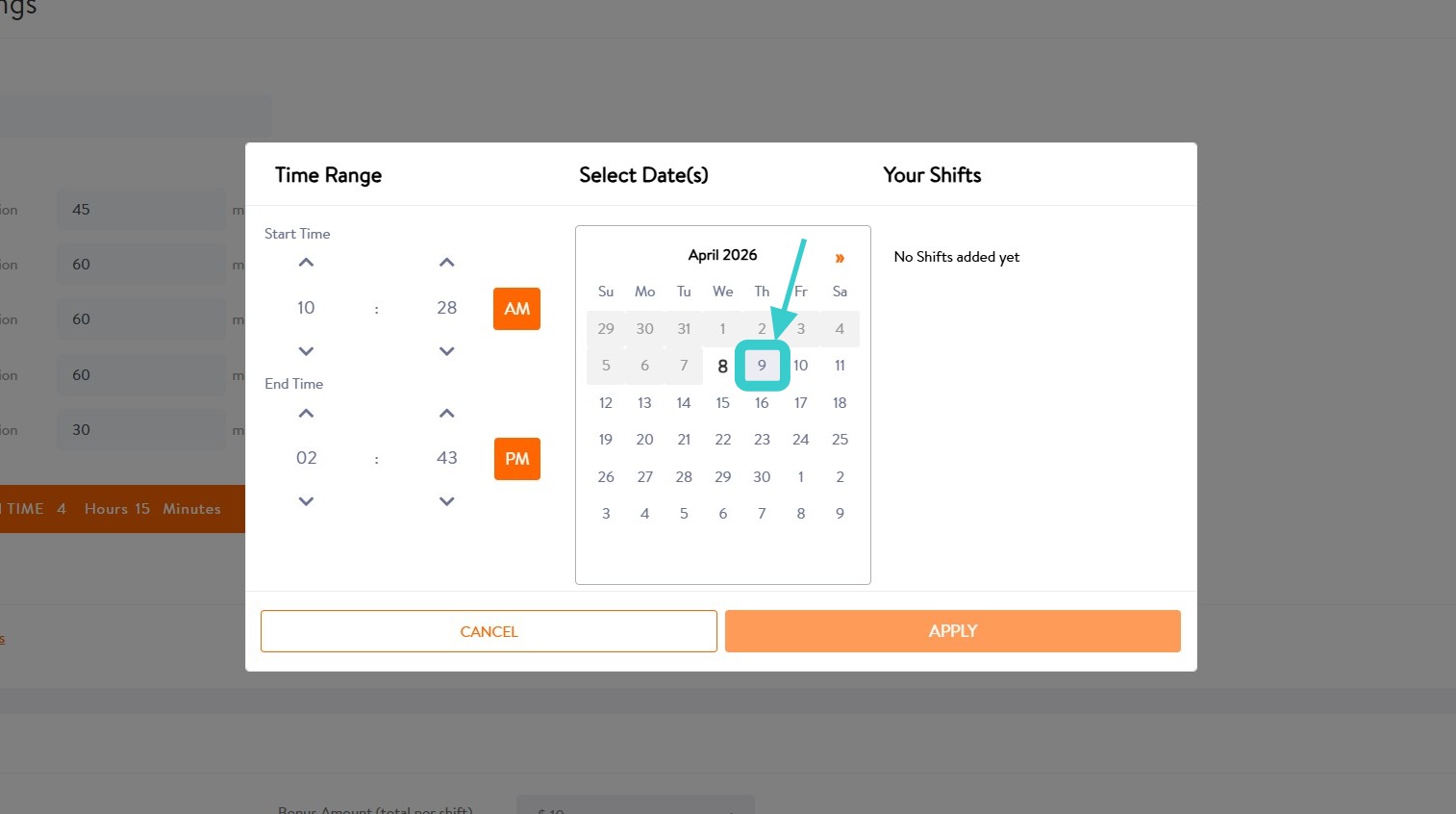
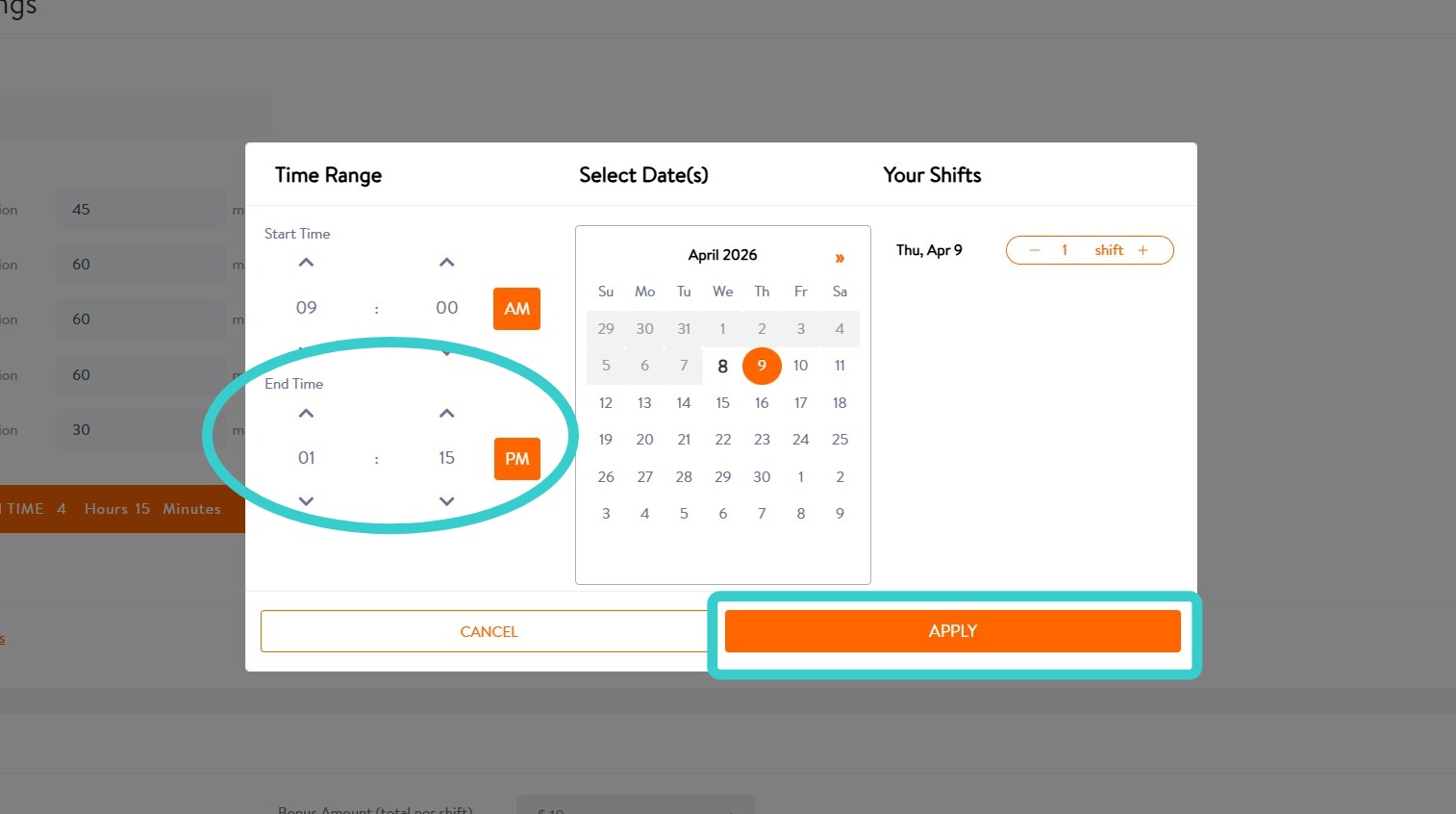
6. Select the date and start time for this shift posting.
First, select the date from the calendar.
7. Select the Start Time for the shift.
To adjust the time, select the hour or minute OR use the up and down arrows.
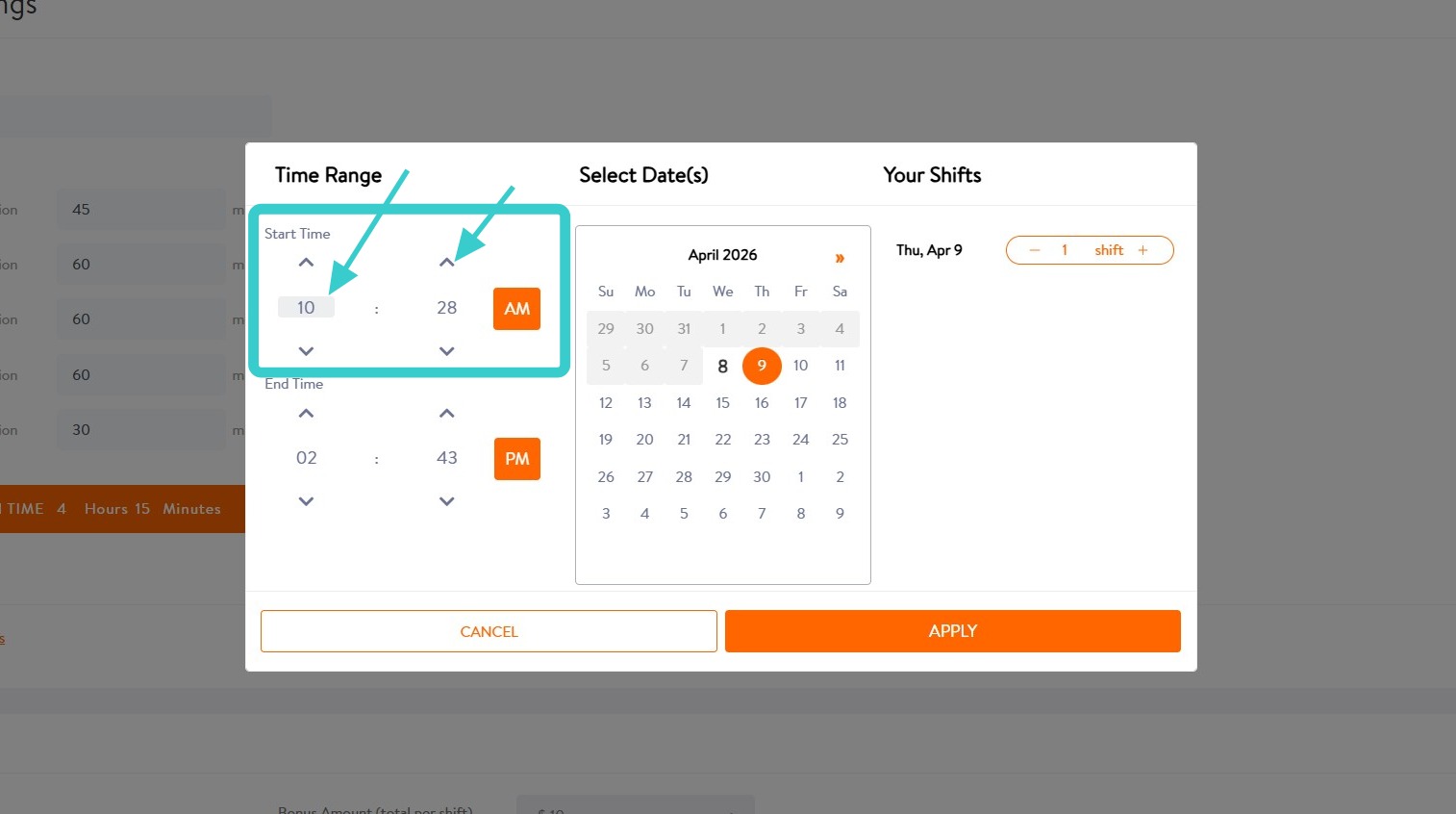
8. Once the Start Time is entered, the End Time of the shift will populate. Review for accuracy and select APPLY
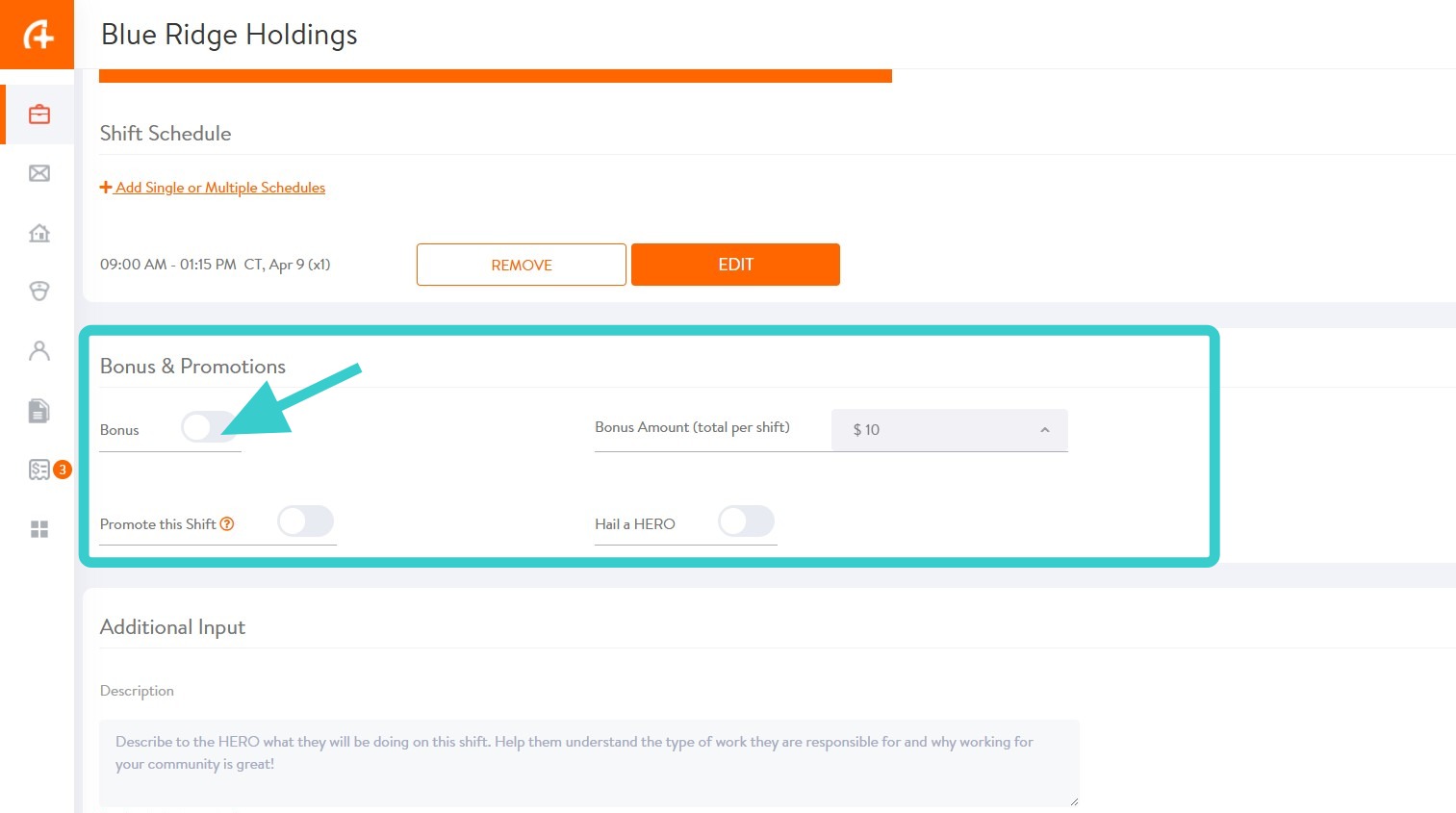
9. Bonuses and Promotions are turned off by default.
For shifts that need additional incentive, you can add a bonus amount, Promote the Shift, or use Hail a HERO by selecting the toggle on/off feature.
- Promote This Shift – Broadcasts the shift to nearby, qualified HEROs via text
- Hail a HERO – Our team reaches out directly to top nearby HEROs to secure coverage.
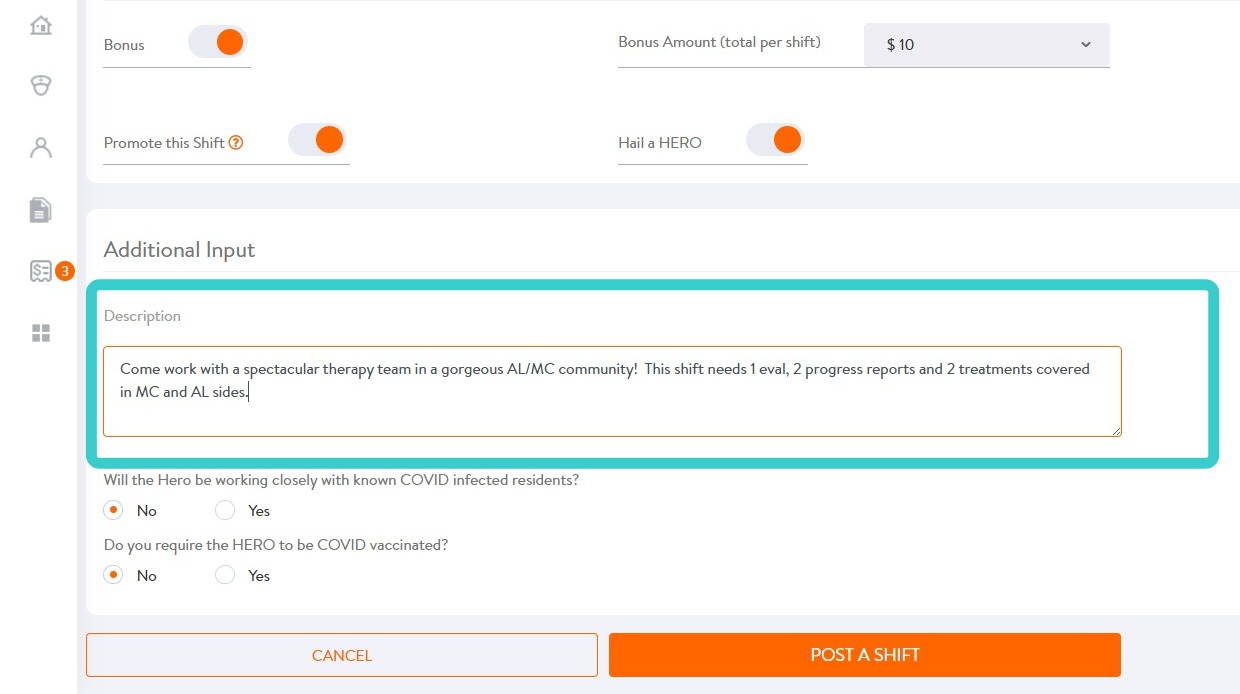
10. Fill out the Description with details on the HERO’s responsibilities and why your community / team is great!
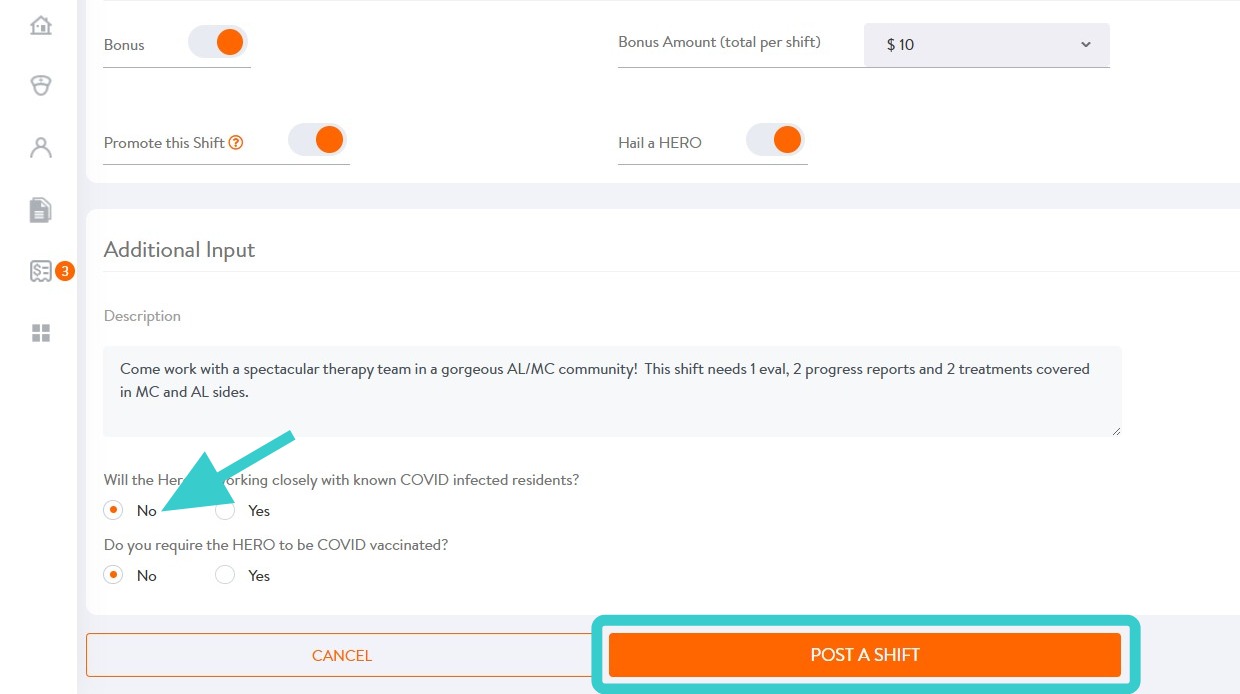
11. If applicable, use the check circles to indicate possibility of COVID exposure or COVID vaccination requirements.
When ready to post the shift, select POST A SHIFT!
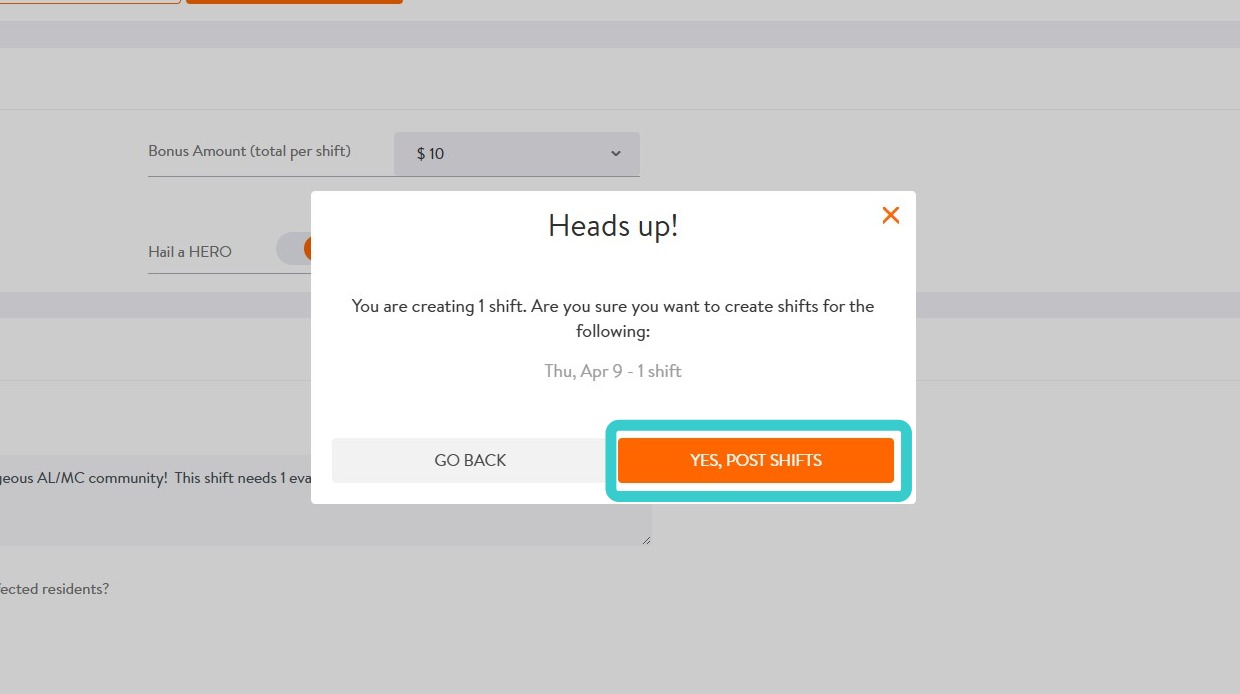
12. Confirm shift posting by selecting YES, POST SHIFTS
13. Congrats! Your shift is posted and ready for a Therapy HERO to apply and save the day!
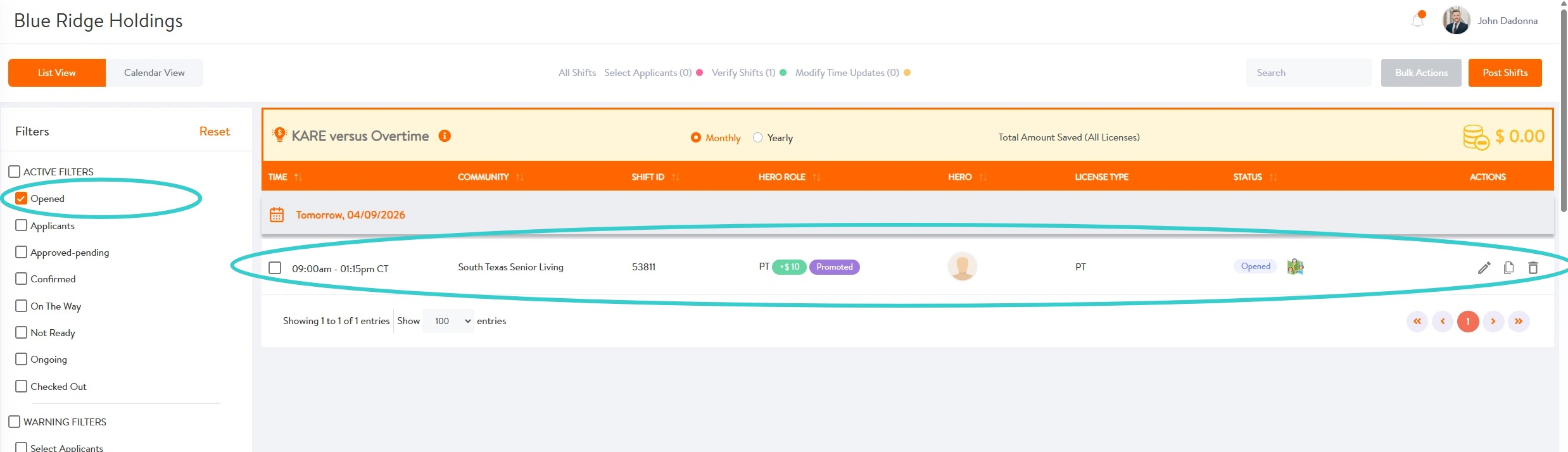
Find your Posted Shift(s) by filtering Opened in the shift view.