
AI-Enhanced Resumes: Supporting Candidate/HEROs Use of Enhanced Resume Tool
This guide explains how KARE staff can navigate to, view, and identify which resume version a HERO or Candidate has selected, and when to send a reminder if a selection has not been made.
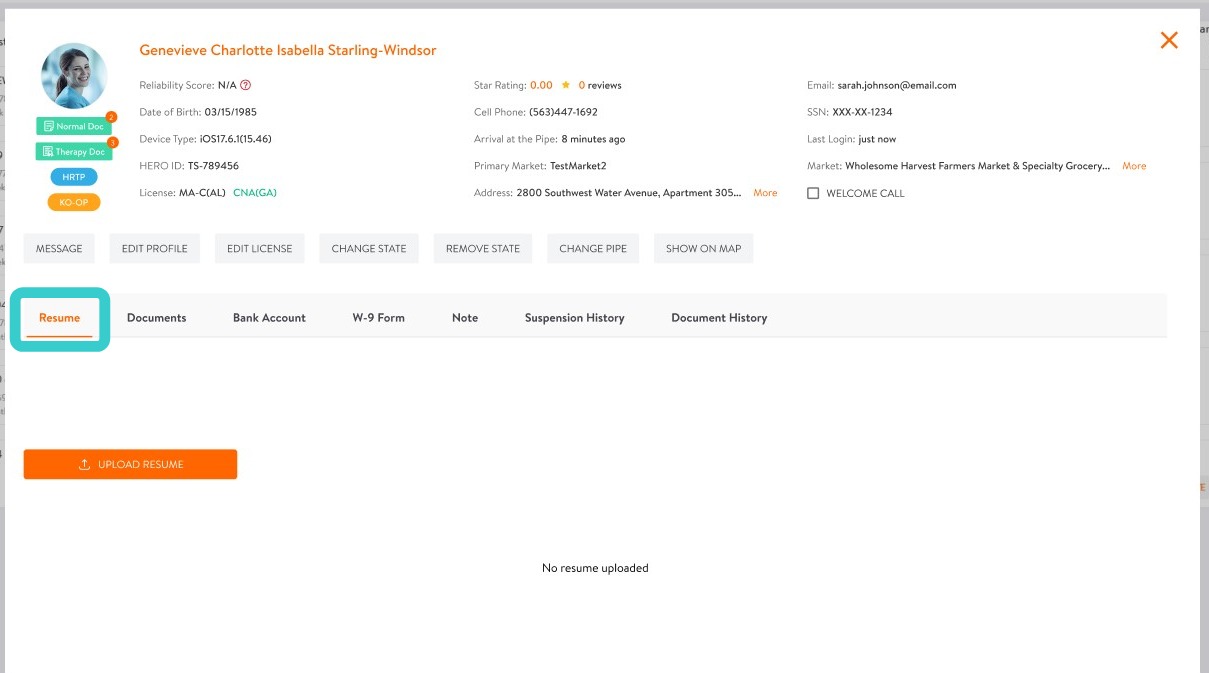
1. To view and access resumes within the candidate modal on the web, select Resume.
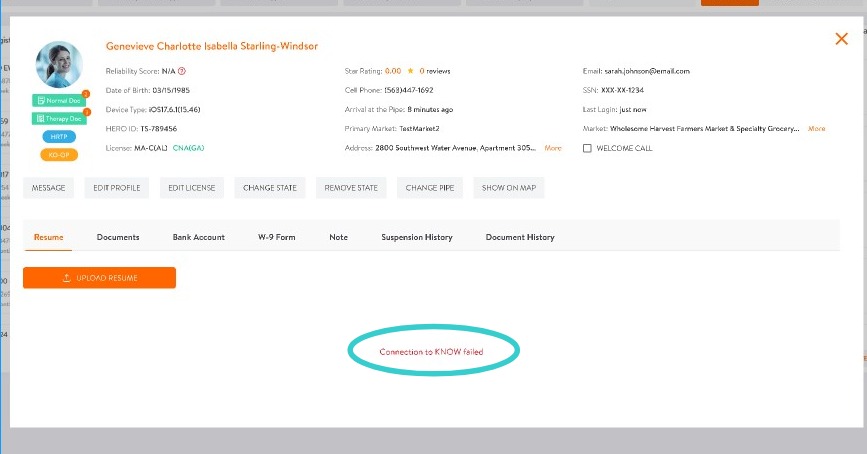
2. Note: if the user sees an error Connection to KNOW failed, the candidate may need assistance logging into Know to complete their resume edits.
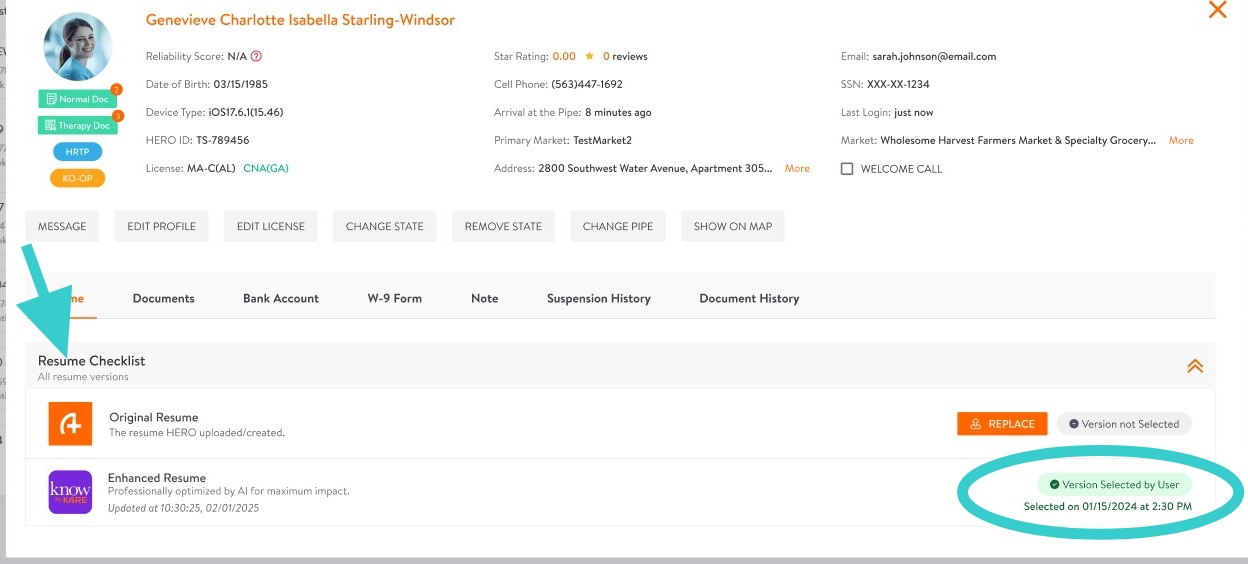
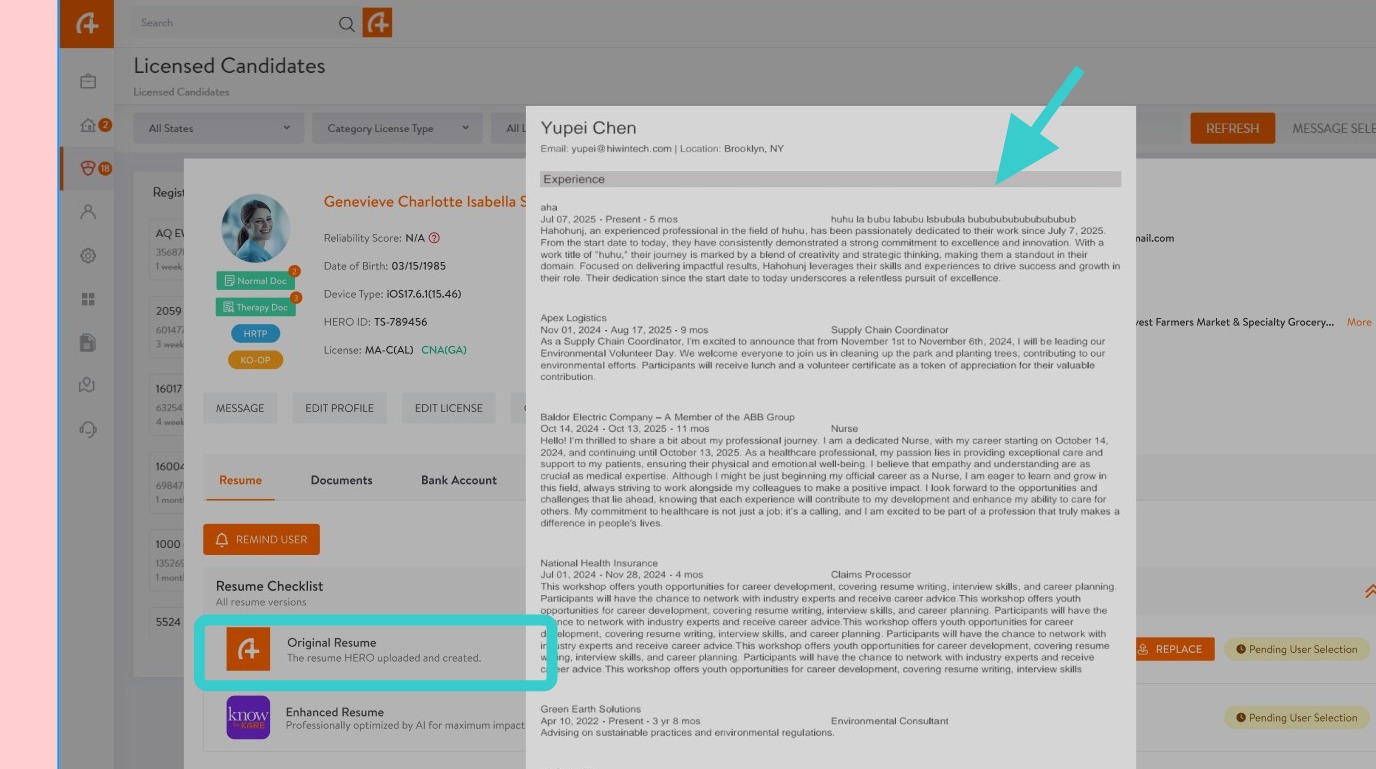
3. If resumes have been uploaded, they can be viewed under Resume Checklist. The candidate’s selected resume is identified by a green Version Selected by User badge.
4. To see the candidate’s resume, tap on the resume to open a preview.
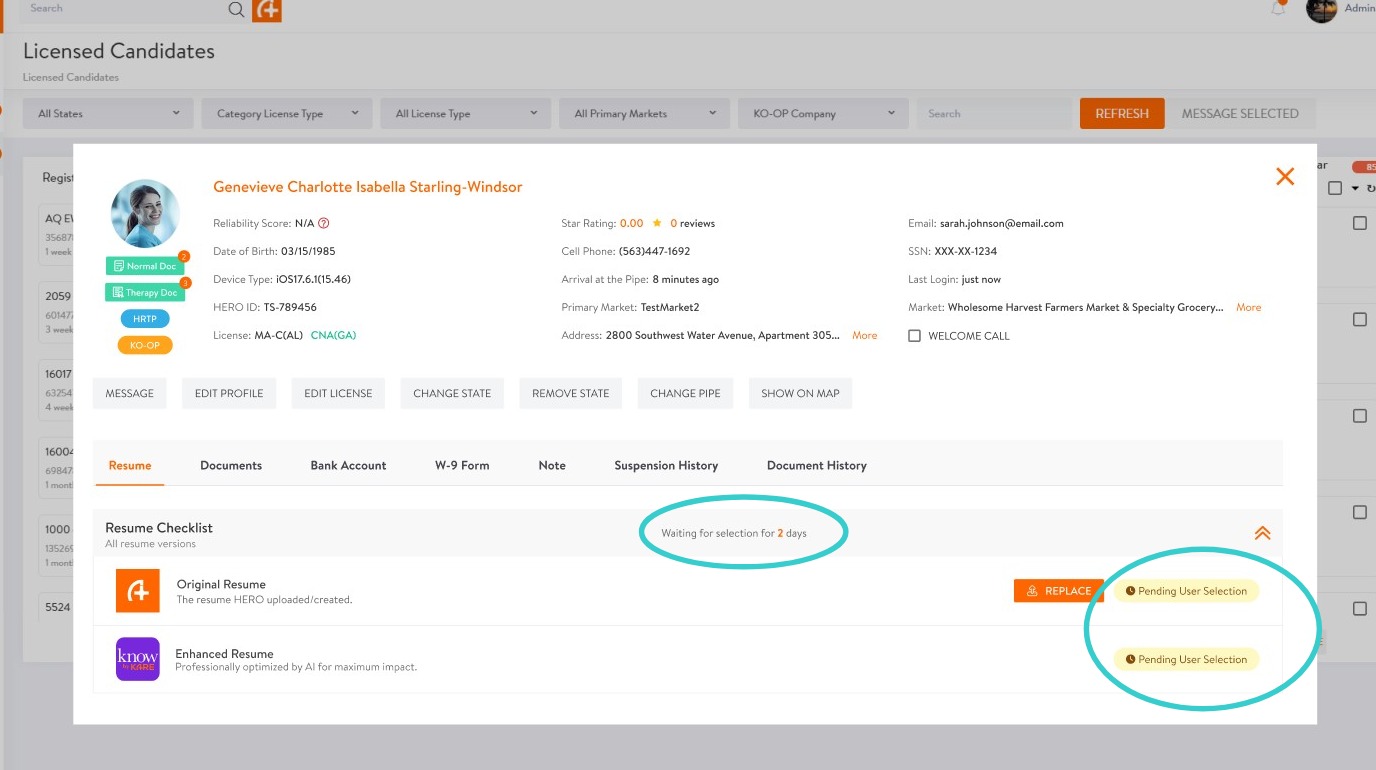
5. If the candidate has uploaded their resume but has not selected which resume to use (Original or Know Enhanced version), they may need a reminder prompting them to select a resume. After 2+ days, an alert will appear in the Resume Checklist row indicating it has been 2 days or longer since the candidate uploaded a resume without making a selection for use.
6. In a HERO Profile:
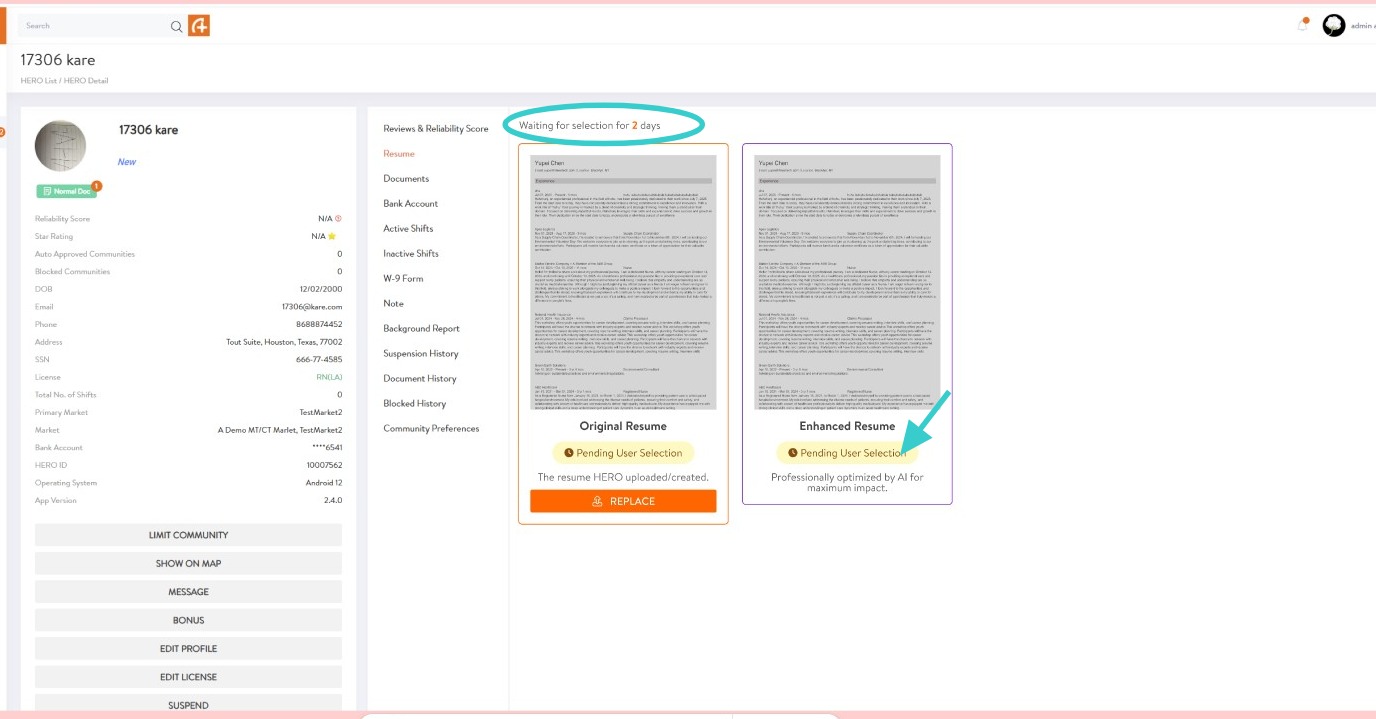
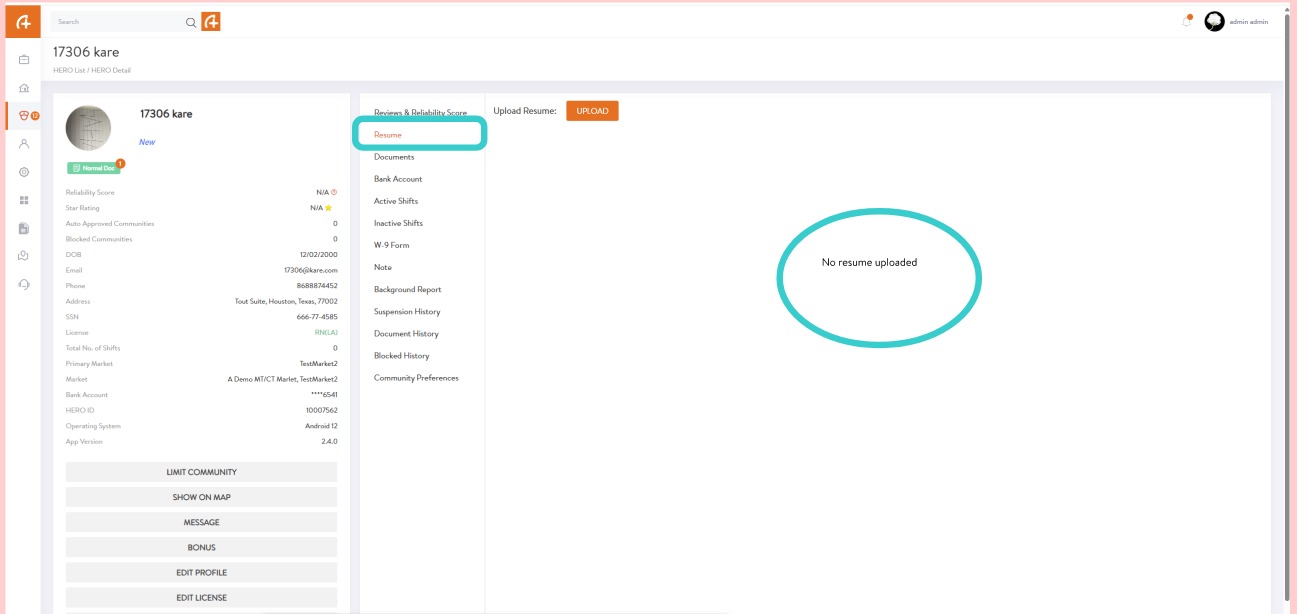
To view resumes within a HERO profile, navigate to the HERO’s profile and select Resume. Here, any uploaded resumes will be displayed. This example shows there is no resume uploaded.
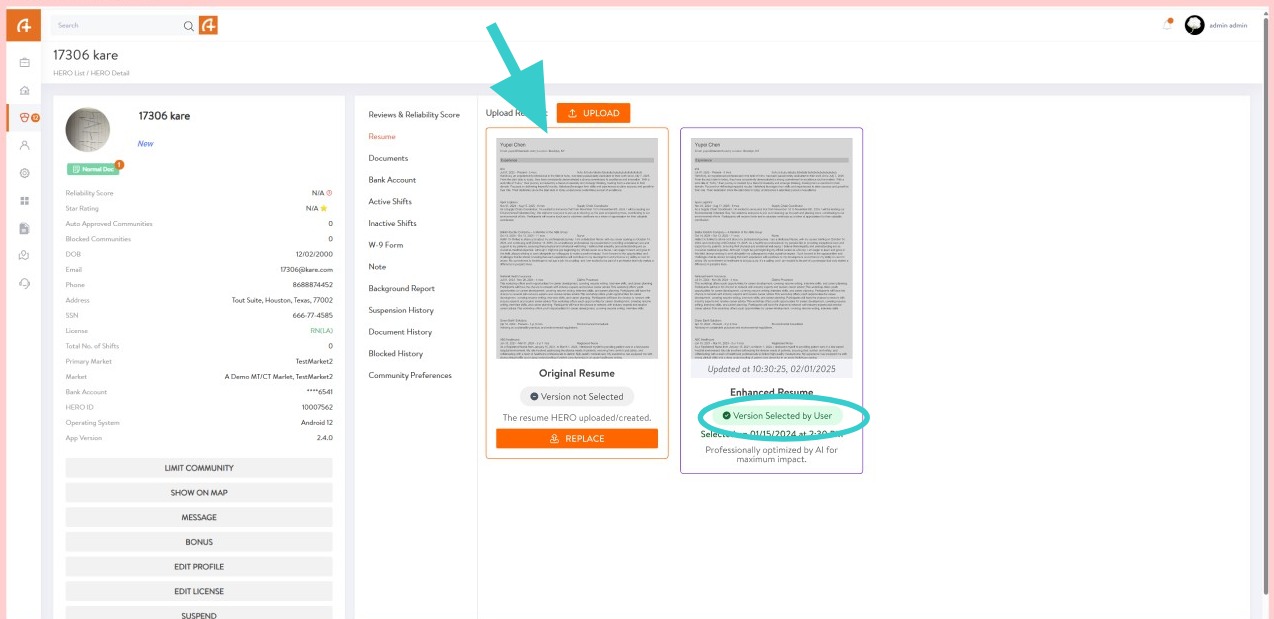
7. If resumes have been uploaded, they will be displayed along with the version selected by the HERO.
8. If the badges within the resumes display Pending User Selection, this means the HERO has not yet chosen a resume to use. When an alert indicates Waiting for Selection (2 days), send a reminder to prompt the HERO to select a resume for use.